How to Use CrystalDiskMark
Step-by-step guide to running a disk benchmark and understanding the main window, test settings, and profiles. Need the software? Download CrystalDiskMark. For common questions, see the CrystalDiskMark FAQ.
Optional: How to run a benchmark (add vd/how-to-benchmark.mp4 for video).
Main Window
The main window shows test buttons (All, SEQ 1MiB Q8T1, etc.), current settings, and the drive selector.
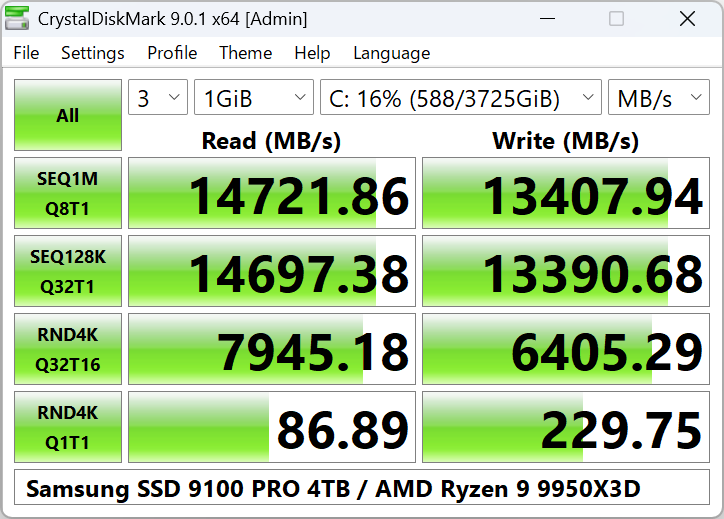
How to Start a Benchmark
- Select Number of Test Runs (1–9; default is 5). More runs give more stable averages but take longer.
- Select Test Size: 16MiB, 32MiB, 64MiB, 128MiB, 256MiB, 512MiB, 1GiB, 2GiB, 4GiB, 8GiB, 16GiB, 32GiB, or 64GiB. Default is 1GiB. Use smaller sizes for USB or slow drives.
- Select Test Drive (e.g. C:\, D:\). To benchmark a network drive, run CrystalDiskMark as a standard user (UAC: No).
- Click All to run all tests, or click individual test buttons (e.g. SEQ 1MiB Q8T1, RND 4KiB Q32T1) to run only those.
Results can be displayed in MB/s, GB/s, IOPS, or μs (average latency). Use the menu or settings to switch the unit.
Test Settings
Open Settings → Settings to configure block size, queue depth, and threads. Two built-in presets are:
Default
- Sequential: 1MiB, Q1T1 and Q8T1
- Random: 4KiB, Q1T1 and Q32T1
NVMe SSD
- Sequential: 1MiB Q8T1, 128KiB Q32T1
- Random: 4KiB Q1T1, 4KiB Q32T16
Profiles
Under Profile you can switch between:
- Default / NVMe SSD – Standard test sets.
- Peak Performance – Stresses the drive for maximum numbers.
- Real World Performance – More representative of everyday use.
- Demo – Shorter demo run.
- Default [+Mix] / Peak [+Mix] / Real World [+Mix] (Standard edition) – Include mixed read/write tests.
Main Menu Overview
File
Copy result to clipboard; Save as text (UTF-16LE) or image (PNG, JPEG, BMP); Exit.
Settings
Test data: All 0x00 (0 Fill) or Random. Some SSDs show different results with random vs 0 fill. You can reset to Default or NVMe SSD preset, or open the Settings dialog.
Theme / Zoom / Font
Switch theme (e.g. Dark, Flower, DarkRed), zoom ratio, and font face/scale/ClearType.
Help
Open manual, About CrystalDiskMark, or Crystal Dew World website. Language can be changed from the Language menu.
For more detail, see the program’s built-in help or documentation.